What Apple Wallet's Latest Style Upgrade Means for Membership Cards
Cuseum · October 29, 2026
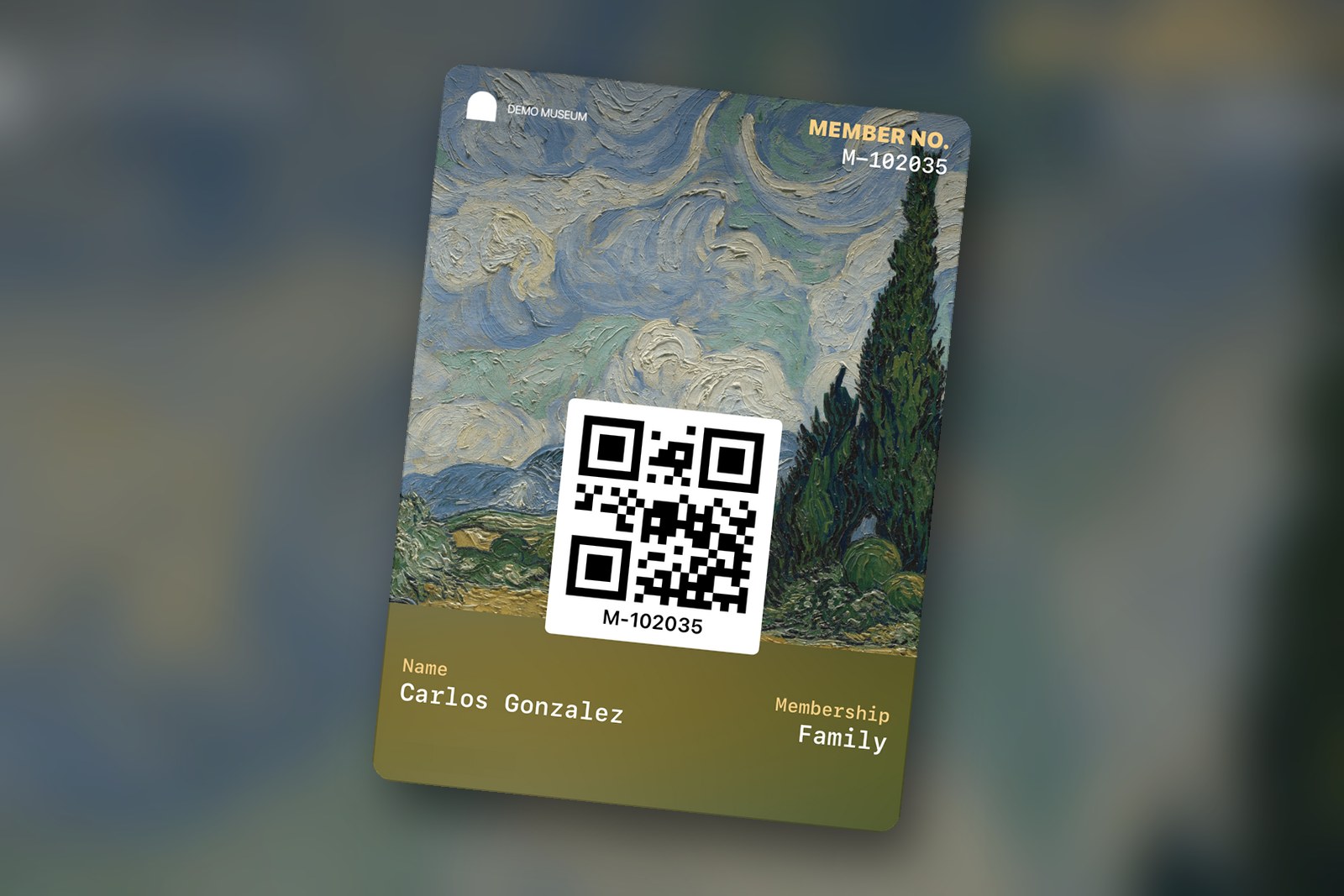
Open a membership card in Apple Wallet today and you will usually find the same few things: a logo, a band of color or a banner image, the member's name, an expiration date and a barcode for the front desk. It does its job at the door, but there is now a new and improved look and feel to help your brand shine even brighter.
With iOS 27, Apple introduced a new pass style for membership, loyalty, rewards and gift cards, which many people simply call a poster pass. It puts large artwork at the center of the card and adds tappable tiles, called Featured Actions, that take members straight to useful pages. Apple describes it on its What's new in Apple Wallet page.
For membership programs, the Apple version of the card reaches a lot of people. StatCounter's September 2026 figures put iOS at 53.6% of mobile web traffic in the United States, so many members will see the poster style once their organization adopts it.
Cuseum is building support for the new style, and it is coming soon. Here is what the poster card changes, where its limits are, and what your team can prepare now.
What Apple Changed in iOS 27
Apple's developer guide, Creating a Poster Generic Pass, lays out the new format. The card is built around poster artwork, a large image that fills most of the front of the pass, with modern typography over it. Apple says the template builds on the poster look it already uses for event tickets, without the event-specific requirements.
The information sits in a few simple fields: a header field at the top, up to four primary fields and two footer fields on the front, plus back fields and an additional info field. Apple's poster layout shows a square QR code placed over the artwork. Wallet also shows some details on its own, such as business information, terms and conditions and locations. Apple warns that Wallet will not display text that runs too long, so short labels and values matter more than before.
The standard generic card works differently. It spreads information across header, secondary and auxiliary fields, and Apple's generic layout shows a rectangular barcode, with the design built around text. The poster card turns that order around: the image comes first and the data second.
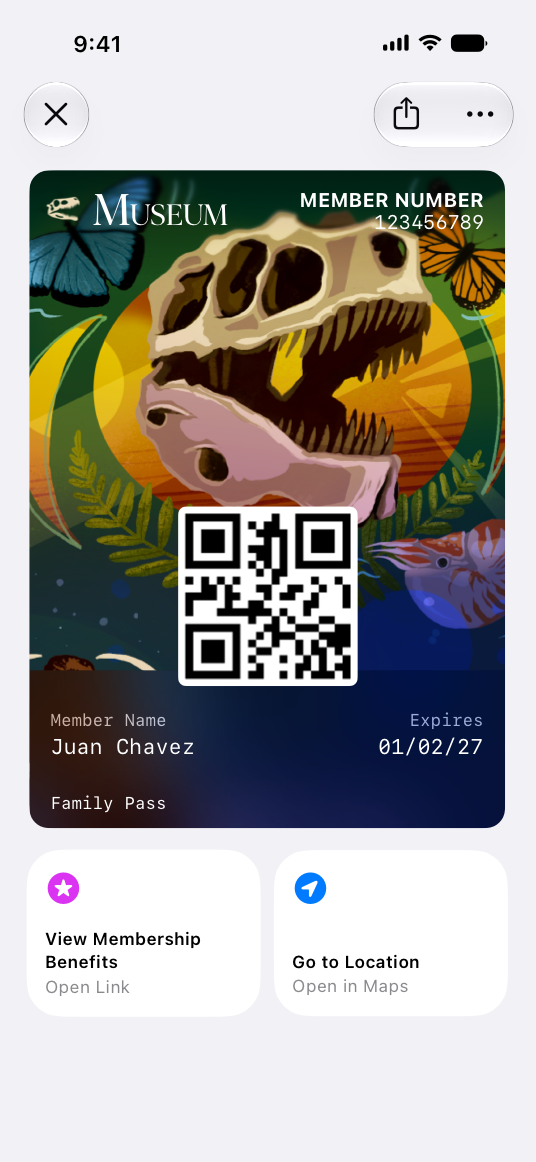
Apple's illustration of a Poster Generic membership pass, with two Featured Actions below the card. Image: Apple Developer documentation.
Let the Artwork Carry Your Mission
For museums, zoos, aquariums and gardens, this is the part that matters most. Your collection, your animals and your grounds are the reasons people join, and until now the wallet card has had little room to show them. A poster card can carry a painting from the permanent collection, a favorite resident of the zoo or a garden in full bloom. A strong image also helps the card stand out among the other passes a member keeps in Wallet.
That makes the artwork a decision worth planning. A few questions to work through with your team:
- Which images do you have the rights to use on members' phones?
- Which ones still read clearly at card size, with a QR code over the lower part of the image?
- Which image says the most about your organization in a single glance?
Apple's guide does not give size or count rules for poster artwork, so there are no final image specifications yet. Shortlisting two or three candidates can start today. Members will see this image every time they show their card, so it deserves the same care as the cover of a membership brochure.
Choose Your Two Featured Actions
The second change sits below the card. Featured Actions are tiles that appear under the pass in Wallet, each with an icon, a short label and a link, for example to a web page or to directions in Maps. They work like calls to action built into the card itself.
A pass can show up to two Featured Actions. Each tile uses one of Apple's predefined actions, and in Cuseum's testing the label is tied to that action type, so it cannot be reworded. Apple's list includes View Membership Benefits, Go to Location, Book an Appointment, Shop Online or In-App, View Offers and Rewards, and Call. In Apple's own museum example, the two tiles read View Membership Benefits and Go to Location.
With only two slots, the choice says a lot about your priorities. For most programs, one tile will point to the benefits page members ask about most often. The second could be directions for first-time visitors, the museum store, or a way to reach the membership office.
Decide which two pages you want members to reach in one tap, and make sure both work well on a phone before the card points to them.
Keep the Standard Card Ready for Older iPhones
Poster cards only work on iOS 27 and later, and members do not all update at once. Even months after a release, many phones stay behind: Apple's own count, measured on June 7, 2026, showed iOS 26 on 79% of iPhones active on the App Store that day, which still left about one in five on an older version.
Apple's answer is a fallback. The same pass can include a standard style alongside the poster style, so iPhones on iOS 27 or later show the poster card and those on older versions show the standard card they already know. Members who have not updated will still have a working card at the door.
That means front desk staff should expect to see both versions for a while, and the standard card still deserves attention. Apple also notes that Apple Watch does not show the strip image, thumbnail or back of the pass, so the key details belong in the text fields on the front, not in the banner image or on the back.
Android Members Already Have Tappable Perks
Google Wallet has offered something similar for a while. In 2025, Cuseum brought a Member Perks module to Google Wallet cards: visually distinct modules with a title, a short description, an image and a link members can tap, which can highlight upcoming events, membership upgrades, donations and special discounts.
The two wallets will not match exactly. Google Wallet allows more of these tappable modules than Apple's two Featured Actions, and Cuseum's Google Wallet modules carry your own wording, while Apple sets its labels by action type. Plan your content so the most important links work on both: the one or two things every member should be able to reach from their card, whichever phone they carry. For many organizations, that will mean the benefits page first and a seasonal highlight second.
Google also features a membership program built with Cuseum among its Google Wallet success stories.
Where Cuseum's Support Stands
Cuseum's support is being built around Apple's poster style, which includes poster artwork, the header, primary and footer fields, a square QR code, up to two Featured Actions and notifications. Which of these will be available at launch is still being finalized, so details may change before release.
It is coming soon, so get ready! In our early testing, existing cards could be moved to the poster style without reissuing them, which should make the change simpler for members when it arrives.
Teams that want to start planning their artwork and their Featured Actions can talk to their Cuseum account representative or contact support@cuseum.com. The early work is the same whatever the final scope: images you can use, pages worth linking to, and messages worth sending.
Plan the Card Like a Poster
Until now, the wallet card has mostly been proof of membership. The poster style gives it room to remind members why they joined, every time they open it.
Pick the image that says the most about your organization. Choose the two pages members should reach in one tap. Keep field labels short. Keep the standard card in good shape for members who have not updated yet.
Ready to Get More From Your Membership Cards?
Cuseum helps museums, zoos, gardens and cultural organizations deliver digital membership cards in Apple Wallet and Google Wallet, connected to the CRM, membership and ticketing systems they already use.
Request a demo to see how it works.